Finding an open event
Go to Booking. You’ll see a list under the heading “Select an event”. Only events that are open for booking appear there — ones still being prepared, and ones already closed, simply do not show up. If the list is empty you’ll see: “No events available for booking.” That does not mean something is broken — usually it means the school has not opened booking yet, or has already closed it. You do not set the opening time; the school does, and the school announces when booking starts.You can only book for children whose class enrolment is Approved. If
your child’s enrolment still shows Pending, wait for the homeroom
teacher’s decision — see
Children and contact details.
How to read the grid
Inside an event you see a grid: each row is one teacher, and the columns are times. The app explains this on your first visit, under the heading “How to book”:Click any white slot in the grid to reserve a time with a teacher. Click a blue slot to cancel. Each row is one teacher — find your child’s teachers and pick a time.Here is how it looks on demo data:
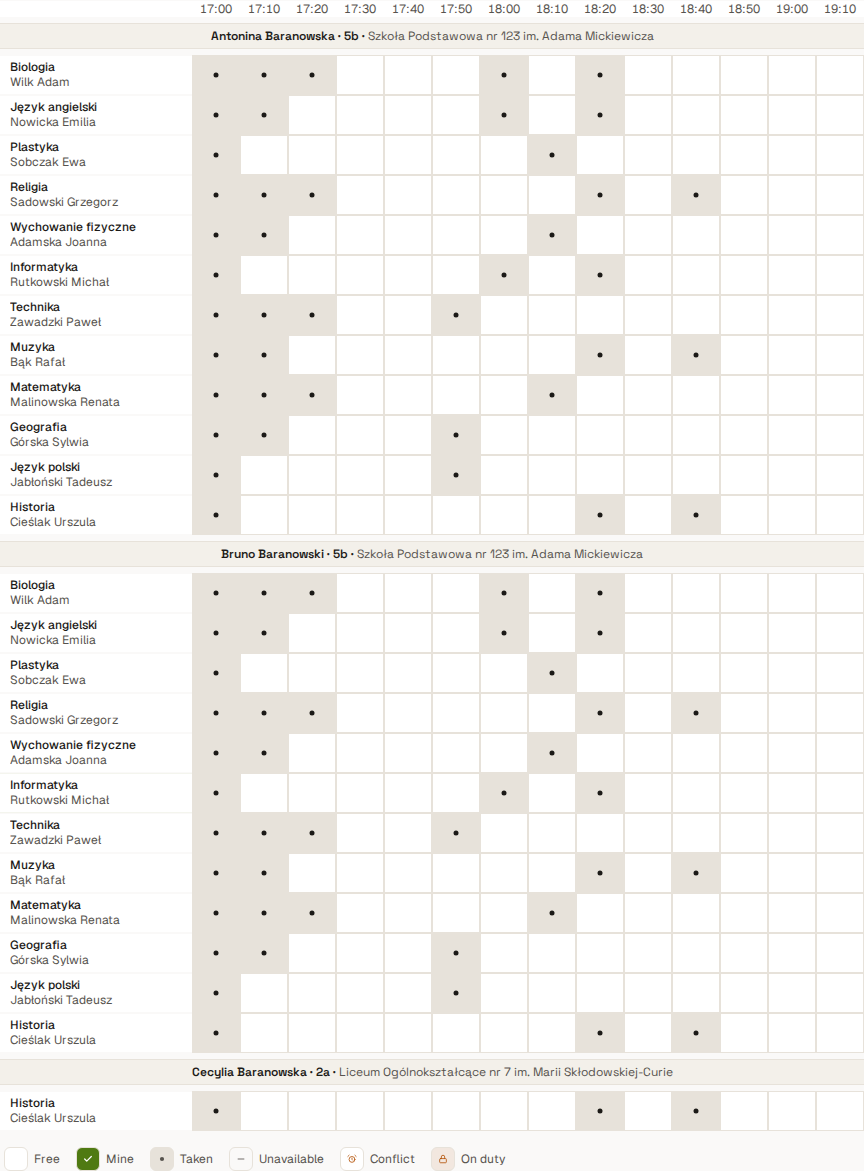
You may also see “You already have a meeting with this teacher for this
child” — not an error, but a rule: one child gets one meeting per
teacher. To move it, release the slot you hold first.
Booking, changing and cancelling
All three are a single click — there is no separate confirmation:- Book — click a white (free) slot. It appears in My reservations in the sidebar.
- Cancel — click your own blue slot. It is released immediately and someone else can take it.
- Change the time — that is a cancel followed by a booking, in that order: release your slot, then click the new one.
Someone took the slot while I was booking
This genuinely happens, and it is not a fault. Slots are shared, and when booking opens many parents click in the same second. Whoever’s click arrives first wins — and the tile may well have looked free a fraction of a second earlier. When you lose that race, a warning bar appears above the grid, headed “Conflict”, with a “Dismiss error” button. Below the heading the app adds a technical description of the rejection, in English and including the slot number — you do not need to decode it. It always means the same thing: that slot is already taken and was not assigned to you. What to do: dismiss the bar and pick another time. The grid refreshes itself, so the contested slot will already show as Taken. Nothing has been broken and nothing was half-saved — either you hold a slot or you do not. You’ll also see the “Conflict” bar when a click is rejected for another reason — for instance if the school closed booking at the moment you clicked. The response is the same: dismiss the message and check the grid.Several children, several teachers
One event covers all your children at that school — you do not switch accounts or enter them separately.- Several teachers for one child — this is the normal case, and it is what the grid is for. You book one slot in each row you need. Just keep the times from overlapping: the app marks an overlapping tile as Conflict.
- Several children — each has its own set of reservations. The “one meeting per teacher” limit counts separately per child, so with a shared teacher you can hold two meetings: one per child.
- Children at different schools — those are separate events, each with its own entry in the “Select an event” list.
The teacher cancelled the meeting
A teacher can cancel a booked slot — for example if they cannot attend. You get an email; the app warns them plainly on their side: “Cancelling frees the slot and emails the parent that the meeting is off.” A cancelled slot does not return to the pool. Cancelling also marks that slot as the teacher’s unavailability, so it cannot be booked back. You can choose any of the other free slots, as long as booking is still open.Adding meetings to your calendar
You do not need to copy reservations by hand. Above the grid there is a “Subscribe to your calendar” section: “Add all your meeting reservations to your calendar app — they stay in sync automatically.” Subscribing beats a one-off file, because a cancellation or a time change reaches your calendar on its own. You can also download a single slot with “Add to calendar”. The details are in Notifications and calendar.What next
- Given a booking link instead of an account? Access from a link.
- Child missing from the list? Children and contact details.
- Something else broken? Troubleshooting.